Search — Find the Right Prospects in graph8
The Search feature in graph8 helps you find the right people and companies for your target audience. You can explore millions of records. Plus, you can also narrow them down with filters like job title, industry, location, or buyer intent.
This guide shows you how to use the Search panel step by step. It covers opening the tool, setting filters, and saving your results for later.
Quick Steps
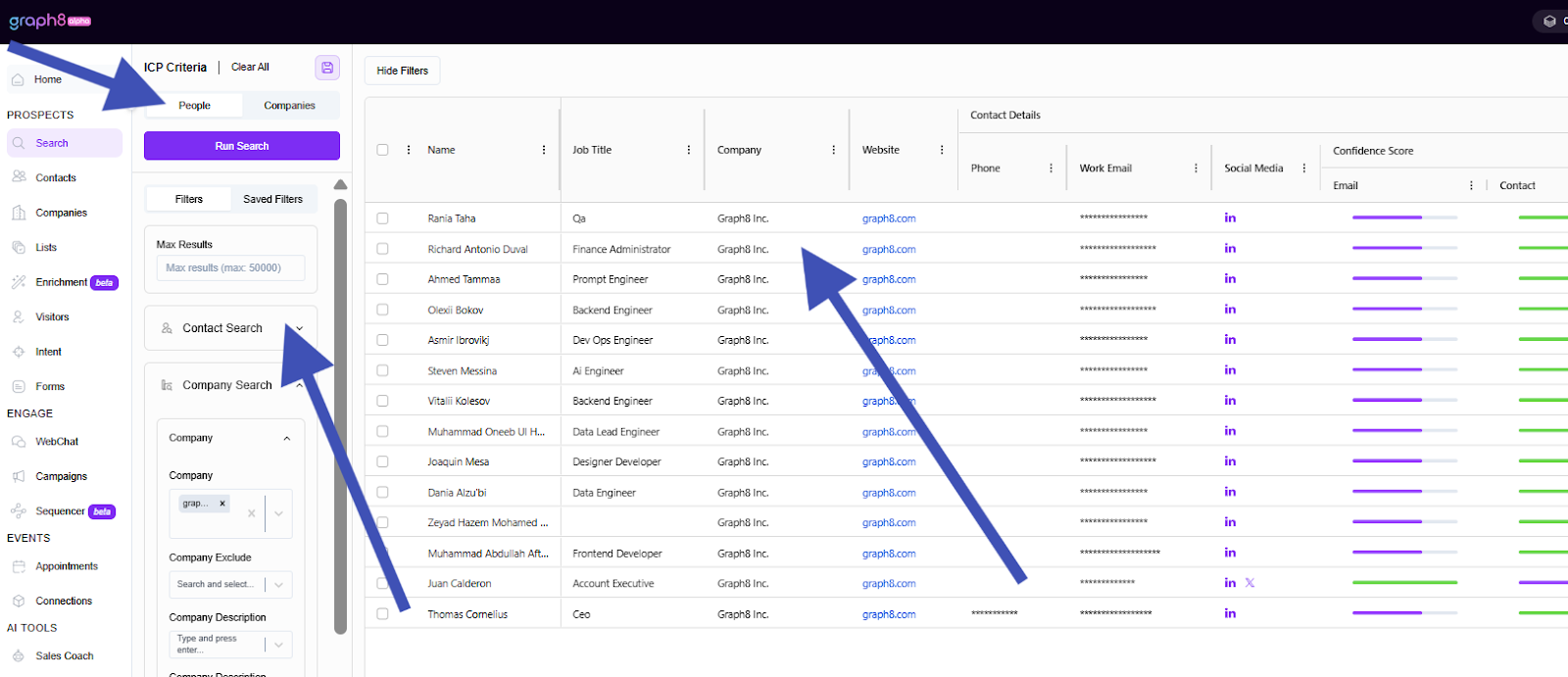
Go to graph8 dashboard and click Search in the left navigation.
Choose People or Companies at the top of the search panel.
Add filters on the left based on your needs, then click the purple Run Search button.
Review results in the main table; click any row to open the full profile.
Save results to a list or export them for outreach.
Step-by-Step Instructions
1. Open the Search Tool
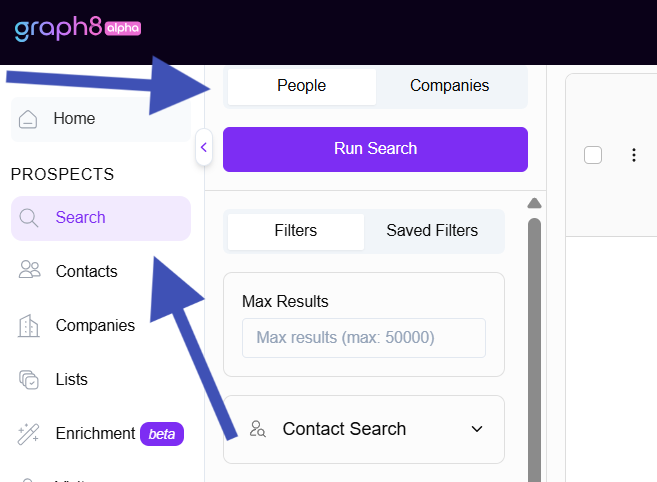
From the left-hand menu, click Search under the Prospects section.
The search panel will open. It shows two main tabs: People and Companies. There's also a Run Search button at the top.
On the left, you’ll see two filter sections: Filters and Saved Filters.
You can also set a limit for how many results you want to see using the Max Results box.
This is your main workspace for finding contacts or companies.
2. Choose What You Want to Search For
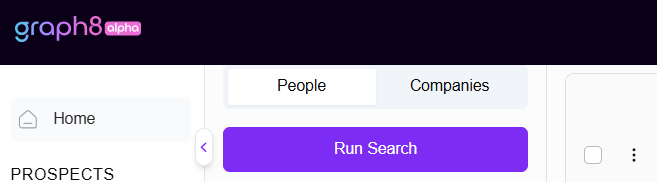
Select People to find individual contacts. This includes decision-makers, sales leaders, and marketing professionals.
Select Companies to find businesses that fit your target market. You can look for specific industries, revenue ranges, or locations.
Choosing the correct tab ensures you see only the most relevant data.
3. Apply Filters to Refine Your Search
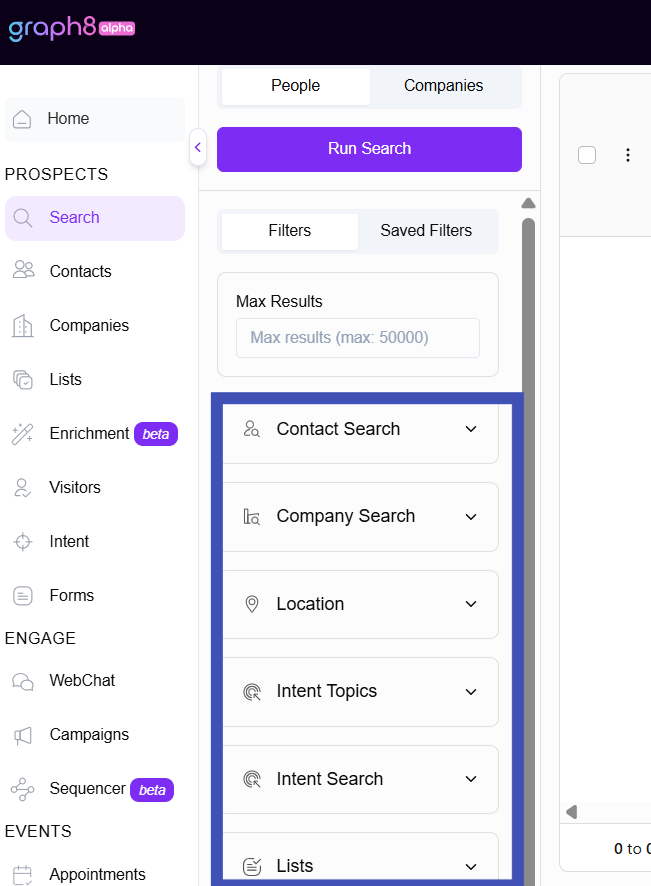
Filters narrow results, so you see only prospects that match your criteria. You can expand each filter group and select the options that fit your needs.
Common Company Filters:
HQ Location: Find companies based in a specific country, region, or city.
Industry: Filter by the type of business (e.g., SaaS, manufacturing, healthcare).
Revenue: Narrow results by company size based on revenue range.
Number of Employees: Target small, mid-size, or enterprise-level organizations.
Intent Topics: Discover companies interested in topics related to your product or service.
Intent Search: Filter companies by keywords or phrases that indicate buying intent.
Common People Filters:
Job Title: Search by role (e.g., Marketing Manager, CEO, Sales Director).
Seniority Level: Choose the level of authority (e.g., Manager, Director, VP, C-Level).
Location: Target contacts based on where they’re located.
Email Confidence: Filter results by how accurate and verified the email is.
Contact Type: Select if you want business (B2B), personal (B2C), or mixed (B2B2C) contacts.
Note: You can expand or collapse any filter group to keep your panel organized and easy to navigate.
4. Understand Confidence and Contact Type
Before you start your search, it’s key to know what each confidence and contact type means:
Email confidence shows how likely an email is accurate.
Medium: Verified with partial match.
High: Strong match with company domain.
High+: Fully validated and exact company match.
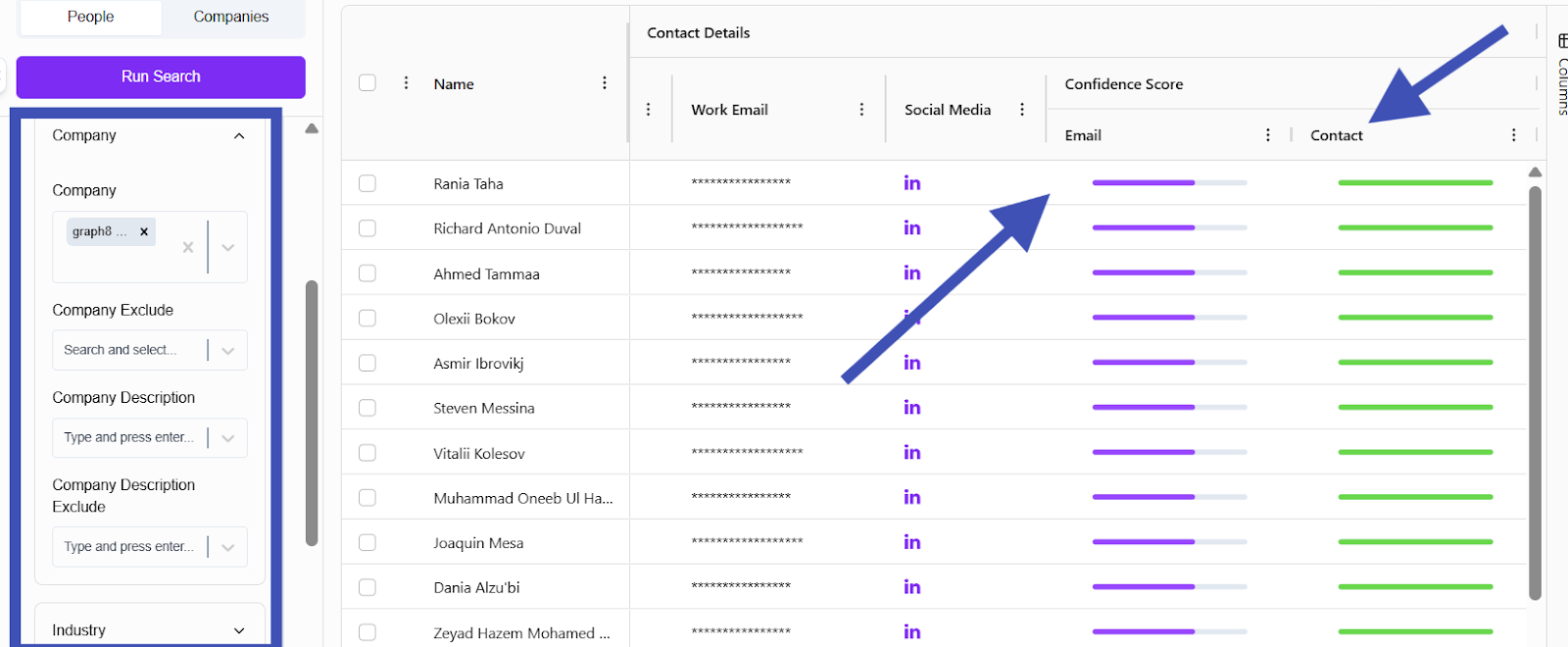
Contact Confidence indicates how fresh and complete the data is. Higher scores show that the contact was recently updated. They include verified fields like email, LinkedIn, phone, and title.
Contact Type:
B2B: Professional contacts with work emails and LinkedIn profiles.
B2C: Personal contacts with private emails or social accounts.
B2B2C: A mix of both, useful for multi-channel outreach.
5. Run the Search
Once your filters are ready, click the Run Search button (purple).
graph8 will display all results that match your criteria in the main results table.
If no results appear, try:
Removing some filters.
Expanding your location or industry.
Increasing the Max Results limit.
6. Review and Explore Results
The results table shows important details like Name, Job Title, Company, Website, Phone, and Work Email.
You can click any row to open a full profile and see more detailed insights or enrichment data.
Use the Columns tab on the right side to add or hide columns as needed.
7. Save and Organize Your Results
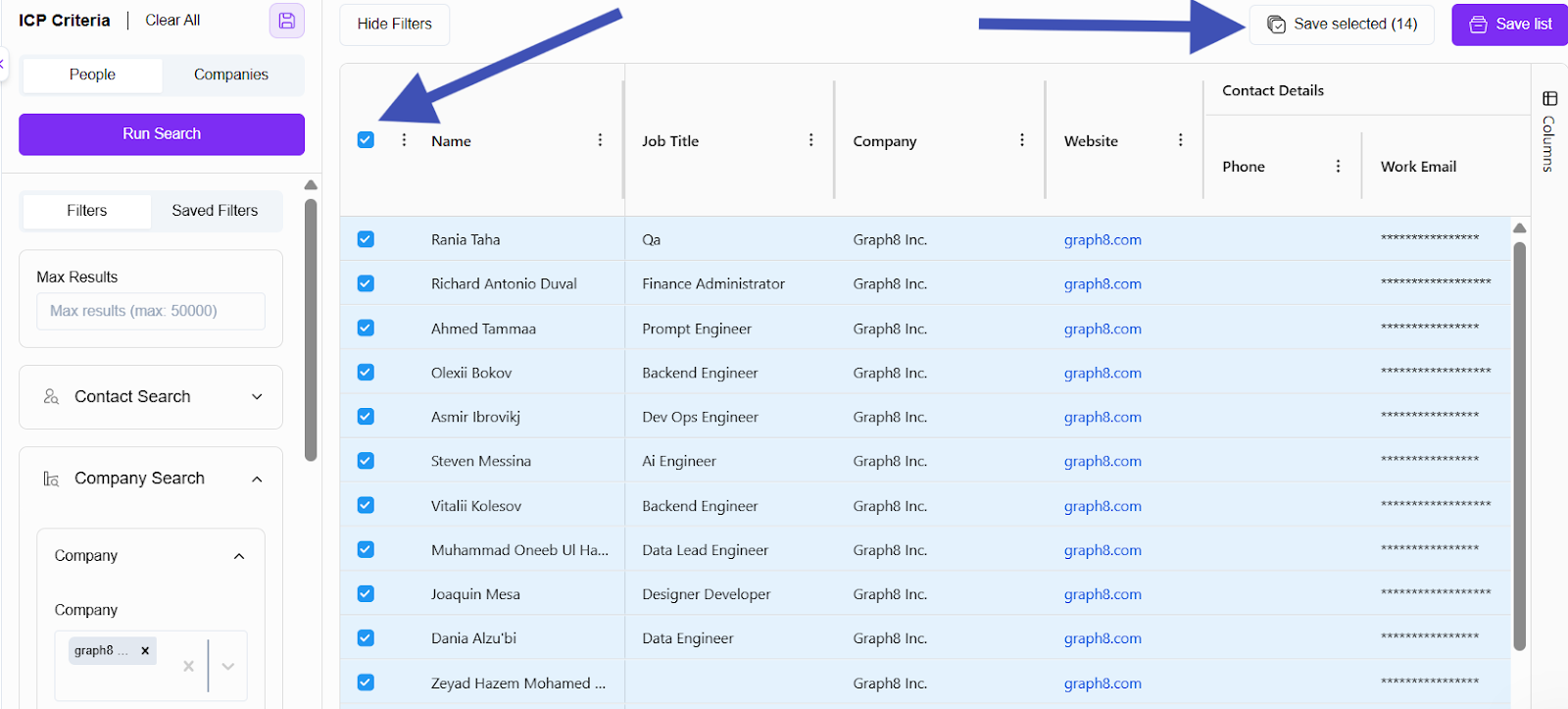
Save List: To save the full set of results (up to 50,000 records), click Save List.
Save Selected: To choose certain prospects, tick the boxes beside their names and click Save Selected.
Saving lists helps you organise contacts for campaigns, future searches, or outreach. It also stops duplicate engagement with the same prospects.
Using Lists to Include or Exclude Prospects
Lists help you organize your prospects and make your searches more precise. You can use them to focus on certain groups or leave out those you don’t want, like current customers or people you’ve already reached out to.
To Include a List
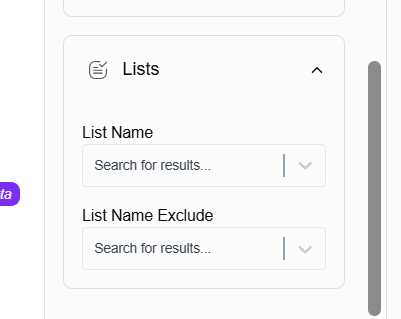
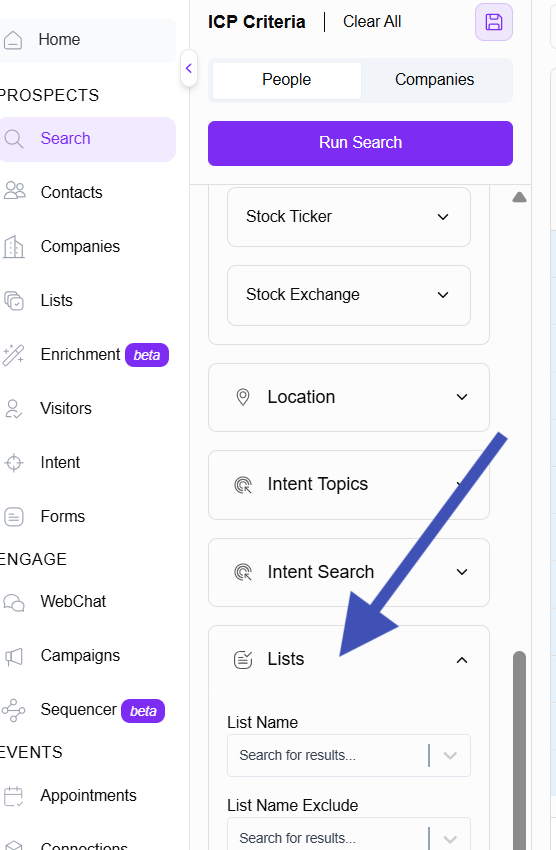
Open the Lists filter section in the search panel.
Under List Name, start typing the name of a list or choose one from the dropdown.
Once selected, graph8 will show only prospects that belong to those lists.
For example: If you choose your “US SaaS Prospects” list, your search will show only contacts or companies from that list.
To Exclude a List
In the Lists filter section, find the field labelled List Name (Exclude).
Search for or select the list(s) you want to exclude.
graph8 will now remove any prospects from those lists in your search results.
For example: If you leave out your “Current Customers” list, your existing clients won't show up in new searches.
Tips for Better List Filtering
Combine the Include and Exclude lists. This will help you target new prospects and skip the old ones.
Keep your “Do Not Contact” and “Existing Customers” lists updated. Always exclude these from new searches.
To clear any filter, click the × icon next to the field.
Using list filters and other search criteria, like job title or intent, gives you the best results.
Troubleshooting and Best Practices
Here’s how to handle common situations and get the best results from Search:
No results showing:
Widen your filters (try broader locations or fewer intent topics).
Increase your Max Results limit.
Make sure no exclusion lists are blocking your target audience.
Too many results:
Add more filters (like job title, seniority, or industry).
Lower your Max Results limit for a more focused list.
Invalid or outdated contacts:
Use the Contact Confidence filter to select only High or High+ records for better accuracy.
Duplicate prospects:
Use exclusion lists to avoid targeting the same people or companies twice.
Regularly review and clean your saved lists to keep your data fresh and reliable.
Need Help?
If you ever get stuck or have questions while using the Search tool:
Visit the graph8 Knowledge Base for detailed guides and tutorials.
Use the in-app chat in the bottom-right corner of any graph8 page to talk with our support team.
Or email us directly at support@graph8.com.
We’re here to help you make the most of graph8 and ensure your search process is smooth, accurate, and effective.
Please authenticate to join the conversation.
In Review
Feature Request
10 months ago

uzman ali
Subscribe to post
Get notified by email when there are changes.
In Review
Feature Request
10 months ago
uzman ali
Subscribe to post
Get notified by email when there are changes.