Forms — We Capture Your Every Submission
graph8 Forms automatically collects and centralises all forms and their inputs from your websites, landing pages, and linked CRMs. It achieves this with just one JavaScript snippet.
So, our Forms feature gathers all submissions in one spot. It shows form-level metrics and lets you act on leads right away. You can save to lists, add to sequences, enrich, or export. No more hunting through different platforms.
This guide shows how graph8 Forms feature work. It includes setup, using Columns and Filters, and practical workflows. This helps prevent lead loss and speeds up follow-up.
Where to find Forms
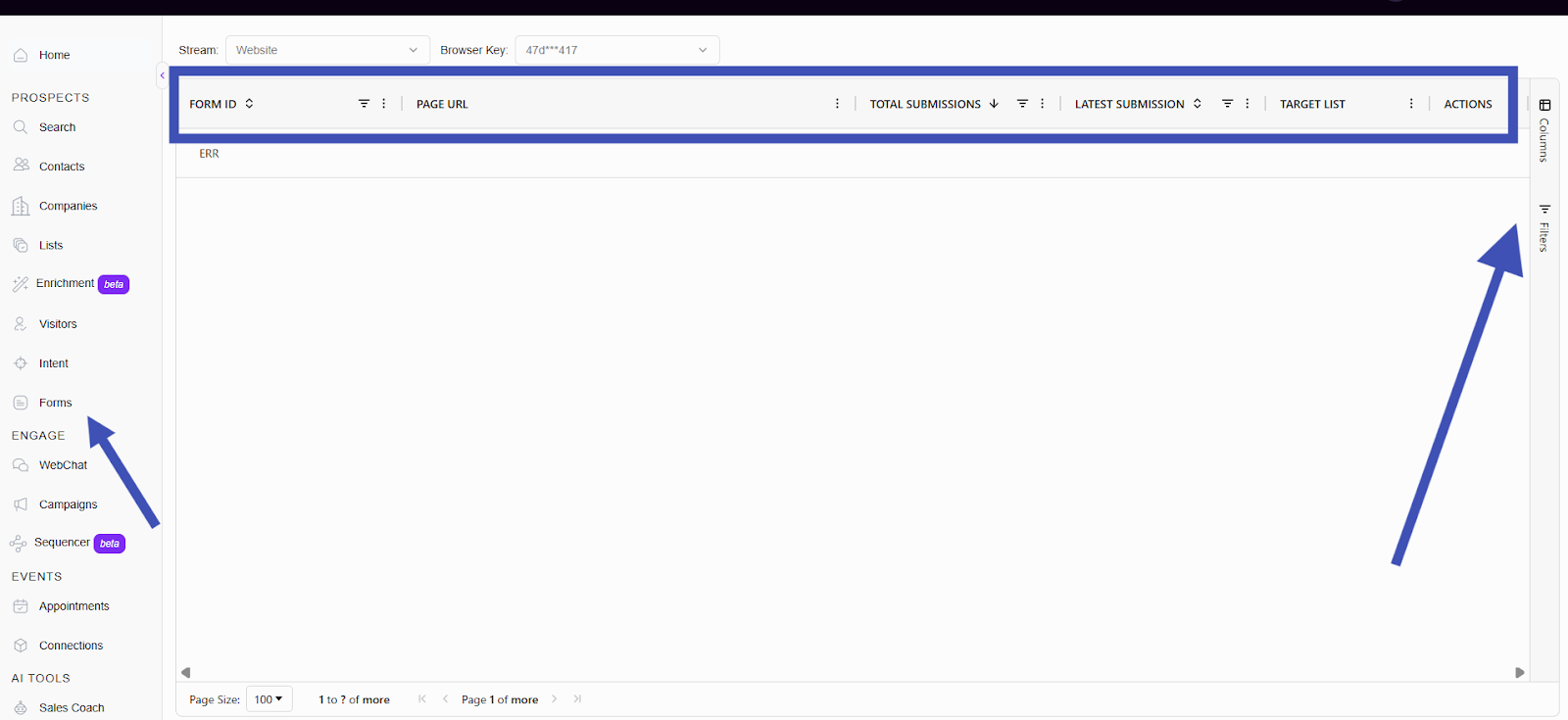
Click Form in the left nav under Prospects. You'll see project and stream controls at the top - these let you choose which website or project to look at. Below those, you've got a main table with form rows and the Columns & Filters panels on the right.
Key benefits
Capture form input from all sources; like site forms, landing pages, HubSpot, and CRM, with one snippet.
Centralise submissions for faster qualification and follow-up.
See which forms convert best and which fields cause drop-off.
Directly add submissions to lists, sequences, or enrichment jobs.
Reduce lead leakage and improve conversion tracking.
Quick workflow
Install the graph8 code snippet on your site(s).
Open Forms → select the relevant Stream (project/site).
Use Filters and Columns to find the form or submissions you want.
Click a form row to view recent submissions and field data.
Take action: save to a list, add to a sequence, export, or enrich the contacts.
Monitor analytics to optimize form performance.
Setup: install the snippet
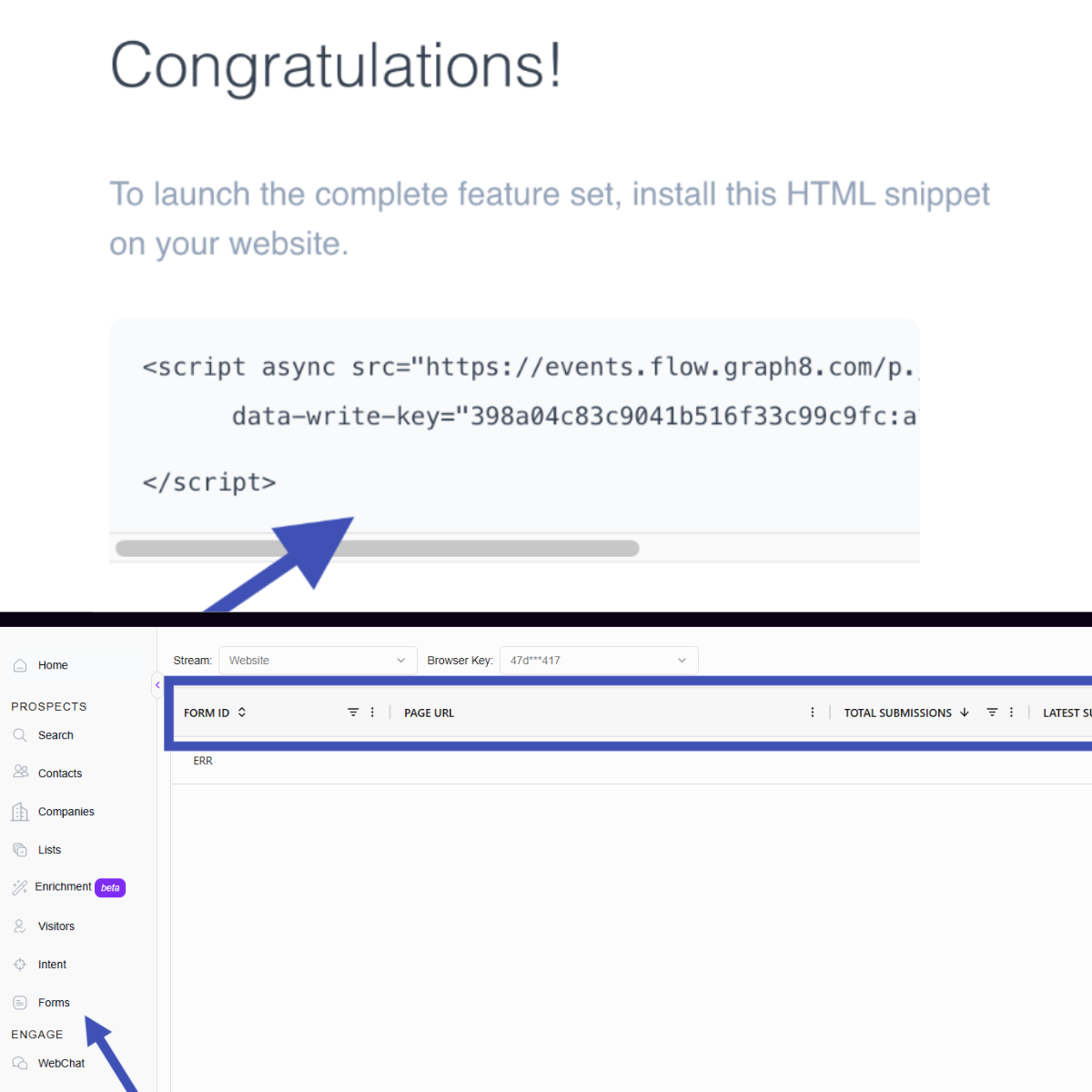
Copy the graph8 JS snippet from your dashboard (For a detailed walkthrough, see → Installing the JS Snippet Guide)
Paste it into your site or tag manager before </head> on every page template.
Publish changes.
Important: If your site has a consent manager (GDPR/CCPA), make sure the snippet loads only after the visitor gives consent when needed.
Page layout and components
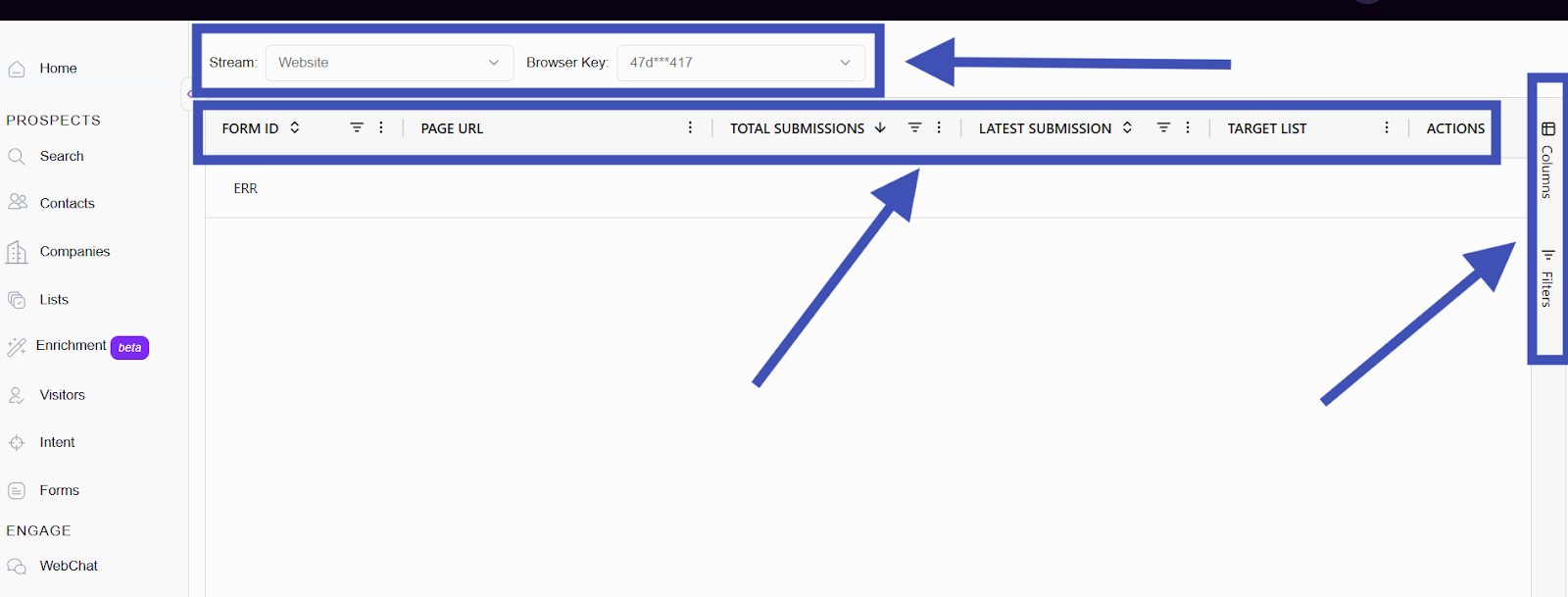
Stream: Choose the website or project (Stream) to view forms for that site.
Browser Key: Optional session-level keys and quick filter controls.
Table columns (main): Typical columns include Form ID, Page URL, Total Submissions, Latest Submission, Target List, and Actions.
Columns panel (right): Show/hide fields to customize the table view (e.g., Form Host, Referrer, Time).
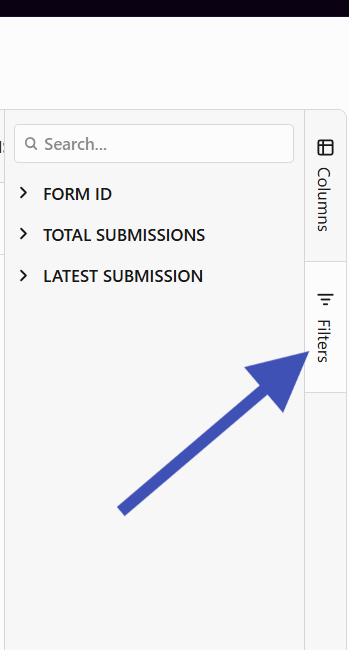
Filters panel (right): You can narrow results by date, page path, form ID, submission count, stream, or target list.
Actions: View submissions, add to list, add to sequence, export, delete or open a submission detail.
Working with columns and filters
Columns
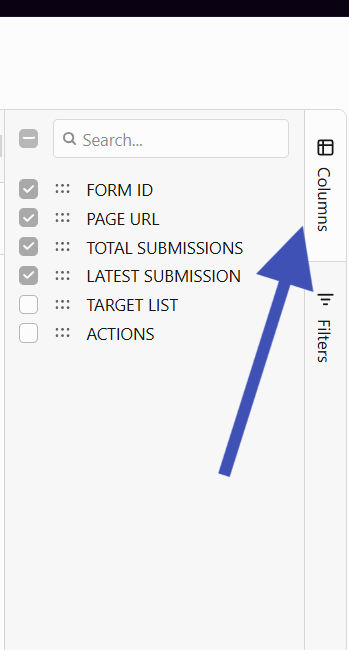
Click Columns to choose which fields appear (Form ID, Page URL, etc.).
Drag columns to reorder; pin important columns so they remain visible.
Auto-size columns to fit their contents.
Filters
Click Filters to narrow your view by:
Form ID
Total Submission
Latest Submission
Integrations and routing
graph8 Forms collects inputs from embedded forms, third-party tools, and linked CRMs once the snippet is installed.
You can send submissions to external systems like CRM, webhook, or Zapier in real time. You can also set up scheduled exports.
Fill in missing contact data like email, phone, and LinkedIn with Pair Forms and Enrichment right after you capture it.
Form analytics and insights
Total Submissions: See volume per form to identify high-traffic forms.
Conversion Insights: Look at page views from visitors and compare them to form submissions. This helps you calculate conversion rates.
Field drop-off: Find fields that are often left blank to make forms simpler.
Latest Submission: Use recency to prioritize follow-up.
Top performing pages: Filter by Page URL to see which pages generate the most leads.
Use these insights to A/B test fields, move long forms to multi-step, or add progressive profiling.
Best practices
Install snippets site-wide so you capture every form and page view.
Test after install: submit sample entries on key pages and confirm they appear in Forms.
Auto-route submissions into target lists (e.g., Demo, Pricing, Enterprise) for faster handling.
Use Streams to separate environments (prod, staging) or multiple domains.
Troubleshooting
No submissions show up. First, check if the JS snippet is installed and published on the right page and stream. Then, clear the cache and test again.
Some forms might not be captured. Check if they use special widgets or are on a different domain that needs CORS setup.
Duplicates: enable merge settings or run a dedupe job before exporting/sequence.
Check for missing fields: ensure the form sends inputs with name attributes. You can also map fields manually in the submission detail view.
Need help?
Use the in-app chat (bottom-right) for quick assistance.
Email support@graph8.com for account, integration, or permission issues.
For setup help or complex routing, like webhooks and CRM mapping, reach out to Customer Success for guidance.
For a detailed code walkthrough, see → Installing the JS Snippet Guide)
Please authenticate to join the conversation.
In Review
Feature Request
10 months ago

uzman ali
Subscribe to post
Get notified by email when there are changes.
In Review
Feature Request
10 months ago
uzman ali
Subscribe to post
Get notified by email when there are changes.