Enrichment — Complete, Clean, and Power Your Data at Scale
graph8 Enrichment adds missing details and boosts the quality of your contact and company data. Upload a CSV or open a saved list. Then, use Enrichment to add emails, phone numbers, LinkedIn URLs, firmographics, recent news, technographics, and more.
You can also generate custom fields with AI.
Enrichment uses two main methods: Use AI and Waterfall. It also includes a Formula tool for data transformations. It works with Lists, Columns, Filters, Analytics, and external Providers. This means enriched fields can be used right away across graph8.
This guide covers the Enrichment page layout. It also provides step-by-step instructions for enriching lists safely and efficiently.
Where to find Enrichment
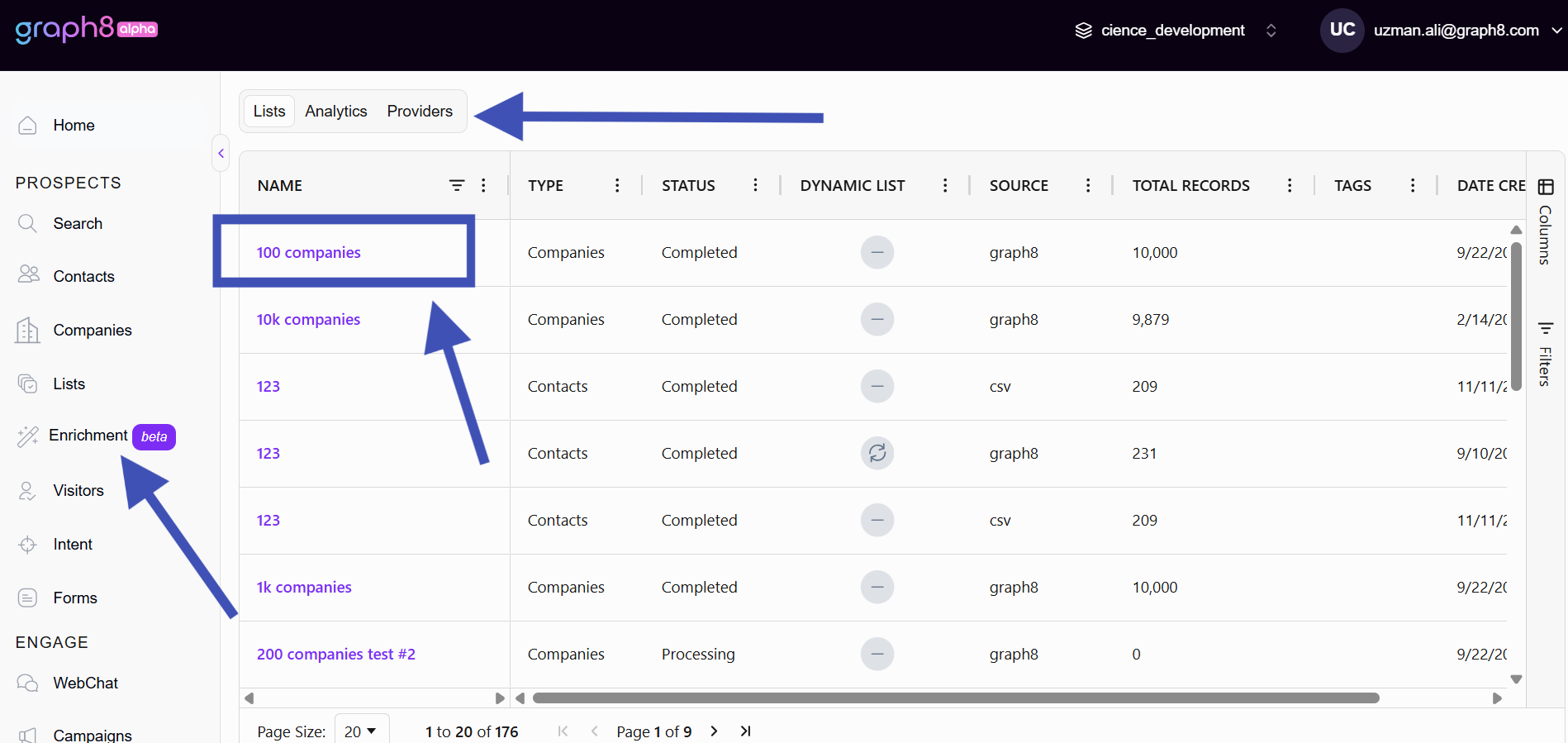
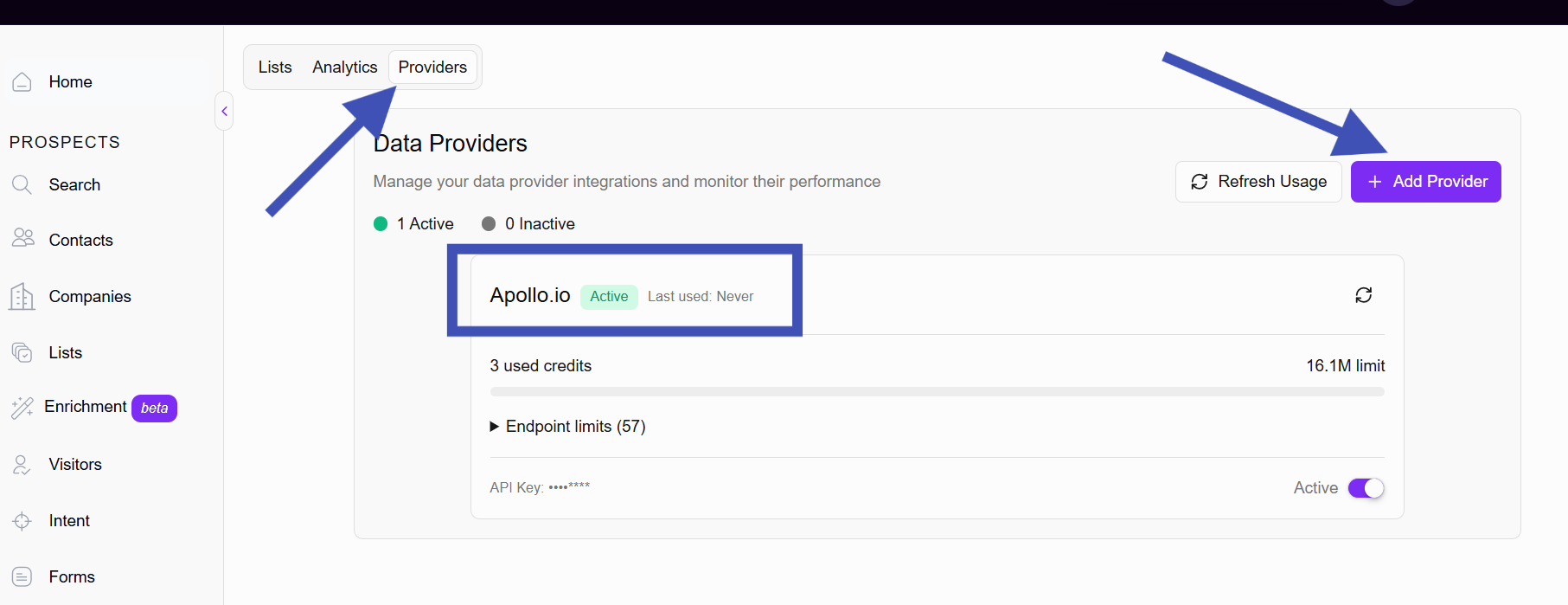
From the left navigation menu, click Enrichment. The page opens with three primary tabs at the top centre:
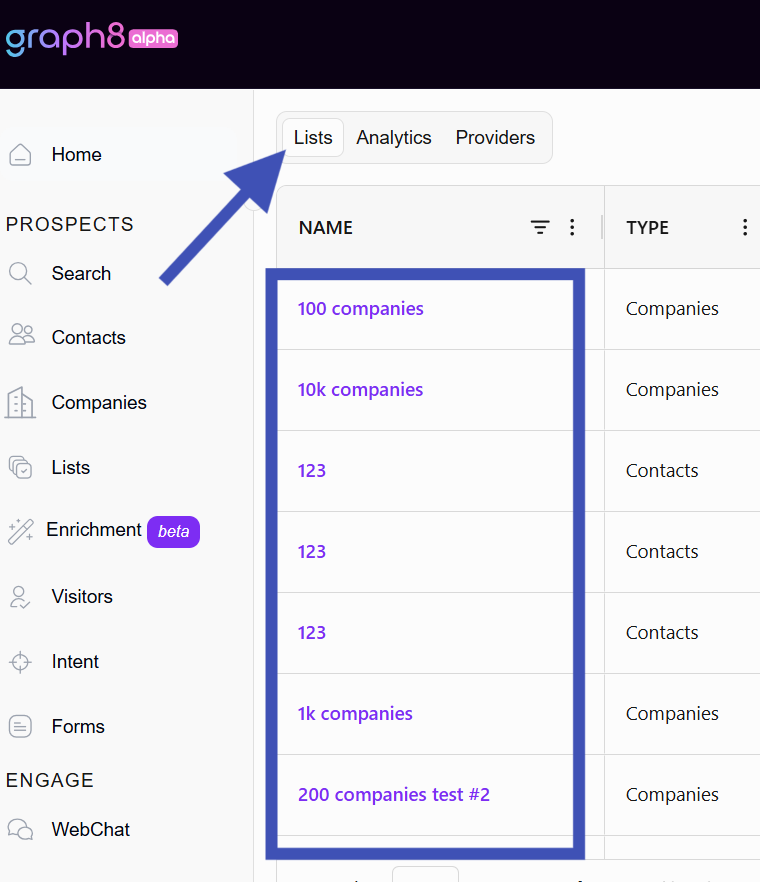
Lists: the lists you’ve uploaded or saved (select a list to enrich).
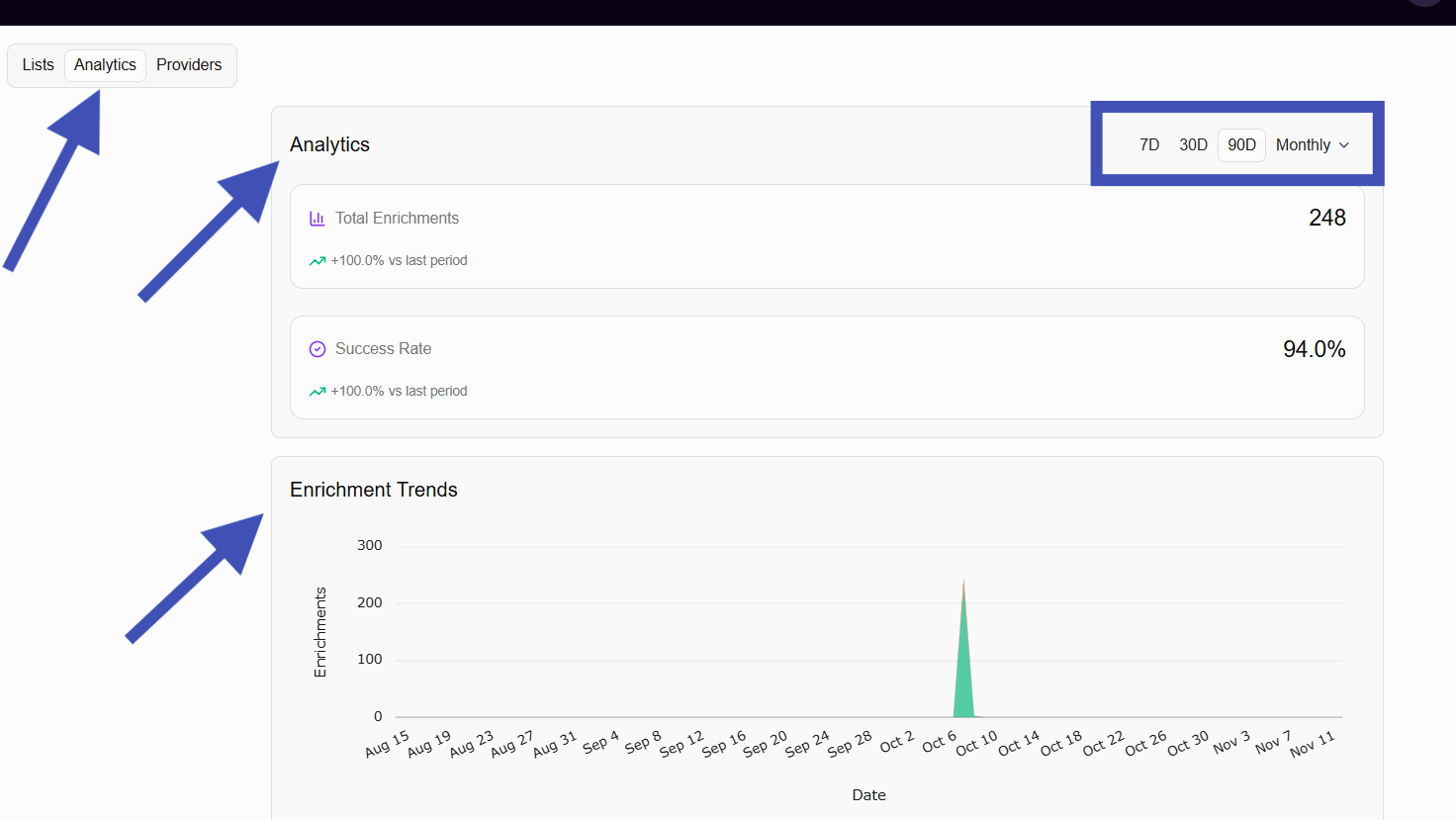
Analytics: enrichment job metrics and charts (success rate, updated fields, job time, etc.).
Providers: Third-party services you can connect, like Apollo, Hunter, BuiltWith, and Semrush, used for Waterfall enrichment.
Note: Select a list first (from Lists) to enable the Enrichment actions (Use AI, Waterfall, Formula).
Top-level workflow (quick view)
Select a List (CSV import or saved list).
Use Columns and Filters to confirm which records you want to enrich.
Choose an enrichment method: Use AI, Waterfall, or Formula.
Preview a small sample and map target fields.
Run the job (or Save and Don’t Run to prepare later).
Review results in Analytics and audit logs.
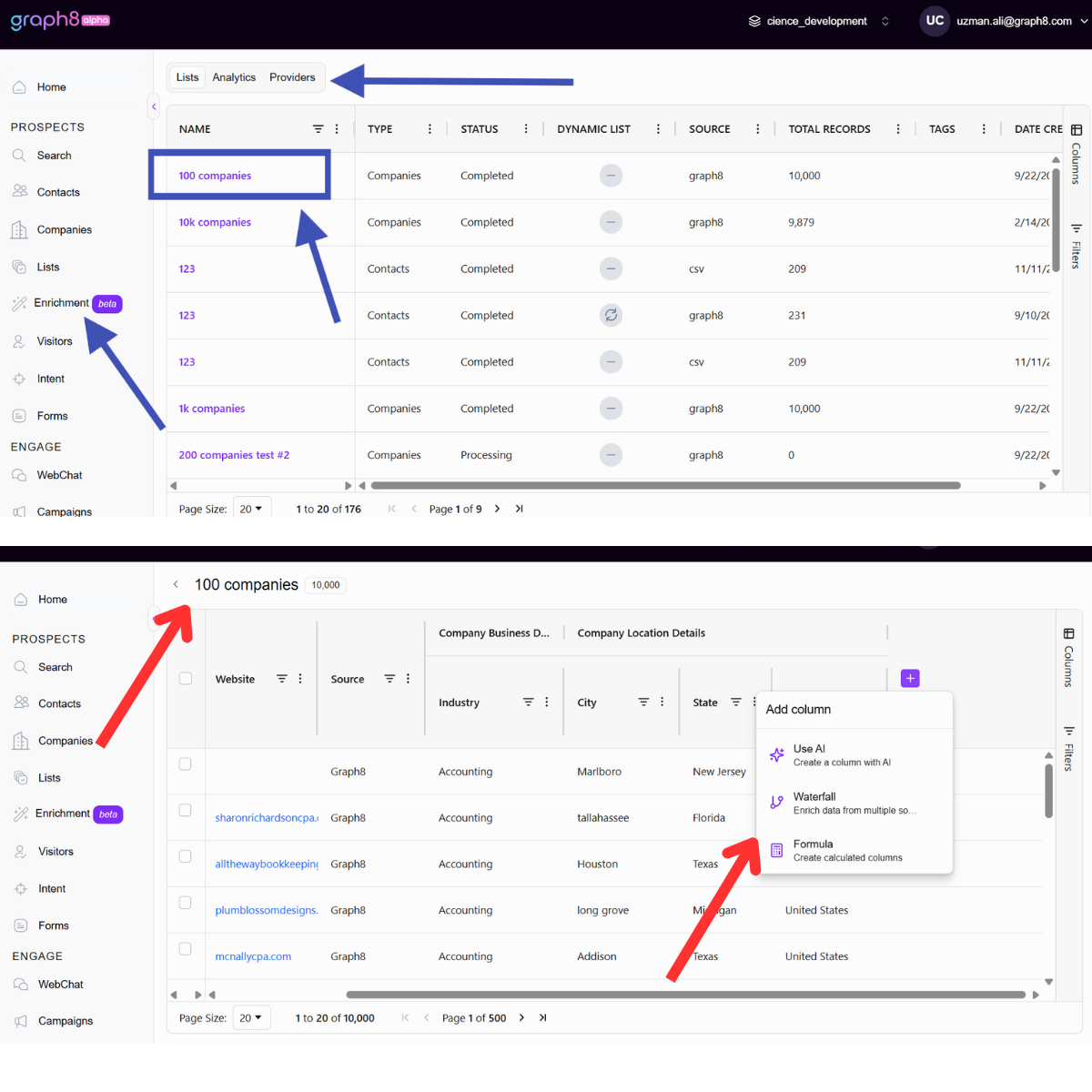
Lists, Analytics, Providers — what they do
Lists
Shows all lists available to you (static and dynamic).
Click a list name to open its members in the table.
Use check boxes to select all or specific records for enrichment.
Analytics
Provides visibility into enrichment jobs and outcomes.
Check counts of enriched fields, confidence levels (Low/Medium/High), job duration, and any records that failed.
Use analytics to check how well providers perform. For example, see which provider finds more valid emails.
Providers
Connect external data services here using API keys.
Providers power Waterfall mode (e.g., Apollo first, Hunter next, BuiltWith next).
Add or reorder providers and view their connection/status.
Columns & Filters (before you enrich)
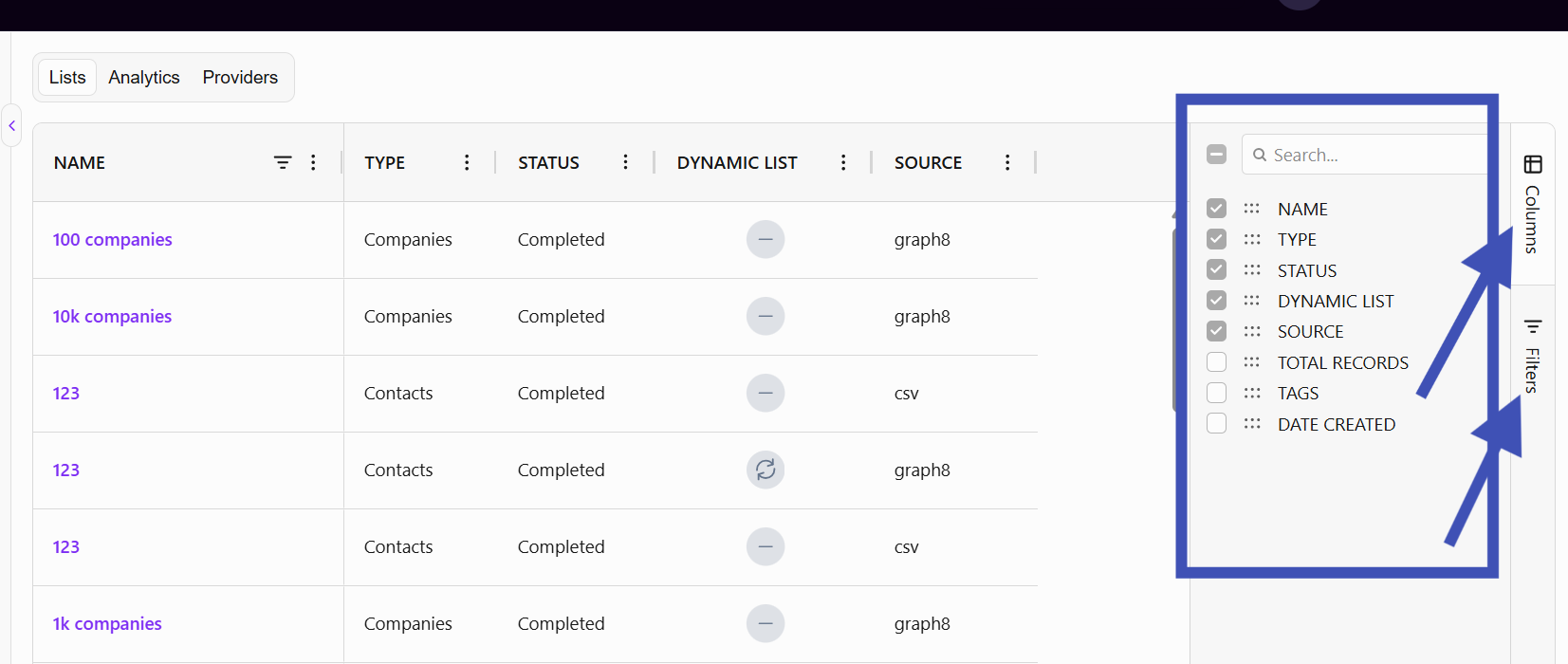
Columns: Click the Columns panel to show or hide the fields you want. This includes options like First Name, Company, Email, LinkedIn, and Confidence. After enrichment, new fields appear here and can be added to the table.
Filters: Use filters to narrow your list. For example, select only records with missing emails or those with Contact Confidence set to Low. Filter selection determines which records the enrichment job will run against.
Tip: Filter to only the records that need enrichment (e.g., blank email) to save credits and time.
Enrichment methods — how they work
1) Use AI
What it does: It uses graph8’s AI engines, like ChatGPT and deep search connectors, to find and create data. It searches public sources and combines the results.
When to use: It's great for non-standard data, like unstructured notes or unusual company names. Also, it works well for natural-language outputs, such as short company summaries or first-line email openers.
How to run (step by step):
Open the list and apply any filters.
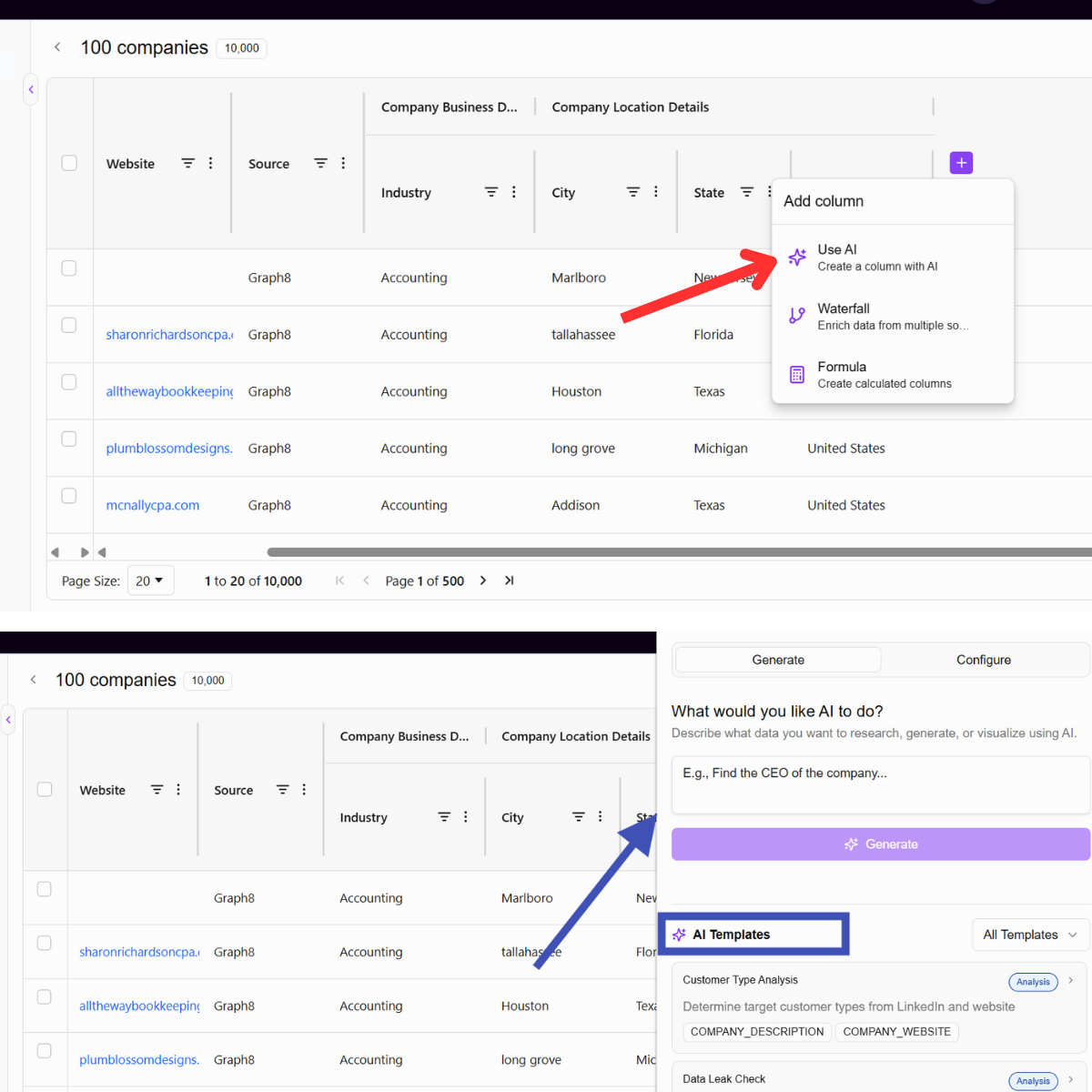
Click Use AI (Add Column → Use AI).
Configure:
Column Name (e.g., Email (AI) or Company Summary)
Prompt (instructions to the AI or use our templates)
Model (like GPT-4, DeepSeek, etc.)
Conflict rule: Skip / Overwrite / Append
Click Preview to run on a small sample (5–20 records).
Review the preview; refine prompt if needed.
Click Run.
Outputs: New column filled with AI-sourced values and a confidence indicator. Always verify high-impact fields (emails, phone numbers) before large-scale use.
2) Waterfall
What it does: It uses a ranked list of third-party providers to find data one after another. If Provider A finds a value, graph8 writes it and stops; otherwise, it moves to Provider B, then Provider C, etc.
When to use: Ideal for structured lookups, such as emails, phone numbers, and firmographic fields, where provider data is trustworthy.
How to run (step by step):
Open the list and filter to target records.
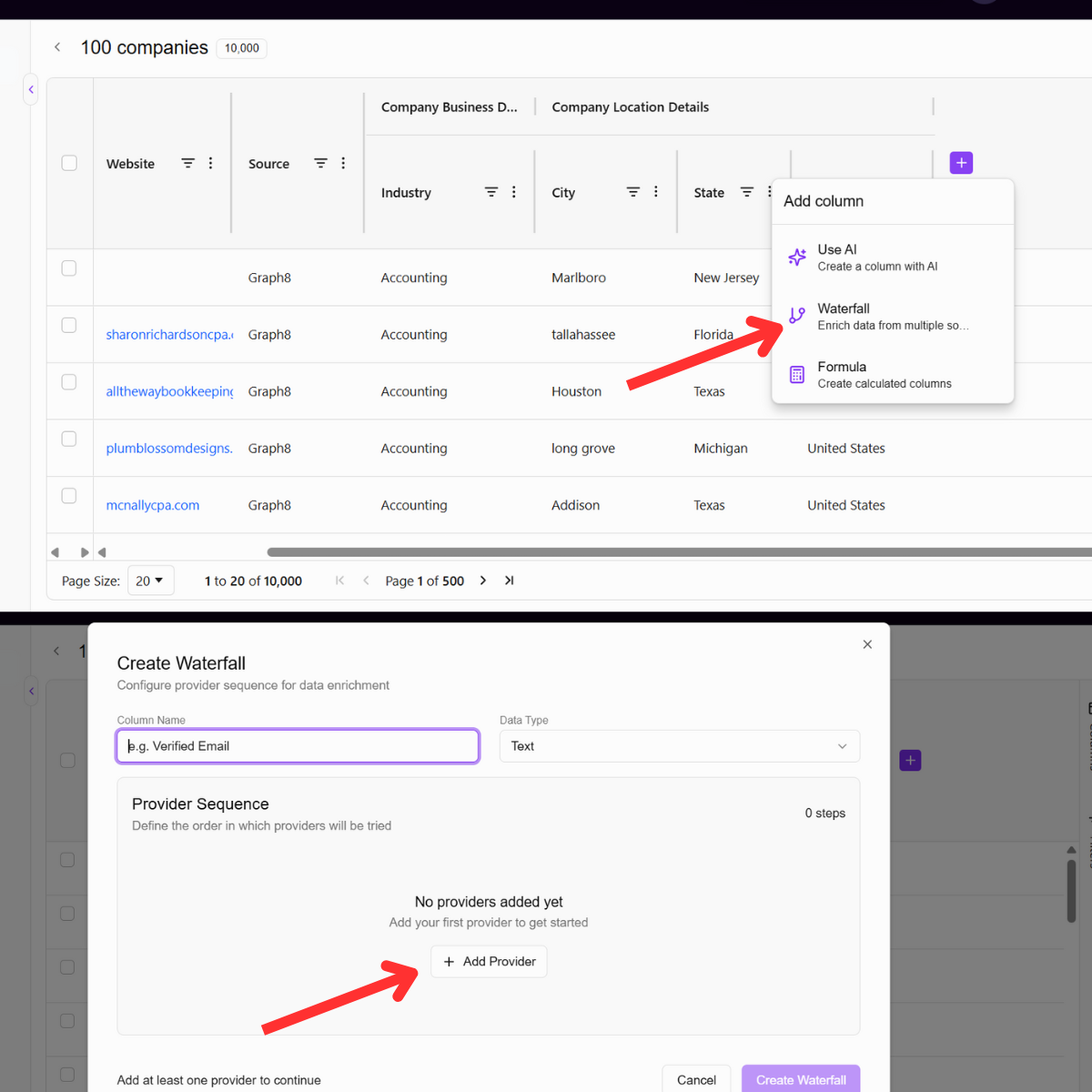
Click Waterfall (Add Column → Waterfall).
Configure:
Column Name (e.g., Email (Waterfall))
Field to populate (Email, Phone, LinkedIn URL, Company Industry, etc.)
Providers (e.g., Apollo → Hunter → BuiltWith)
Conflict rule: Skip / Overwrite / Append
Preview of a small sample. The preview shows which provider returned each result.
Run the job for selected records or the entire list.
Notes:
Providers must be connected in Providers and may require API keys or credits.
Waterfall helps guarantee the best available provider result with fallback.
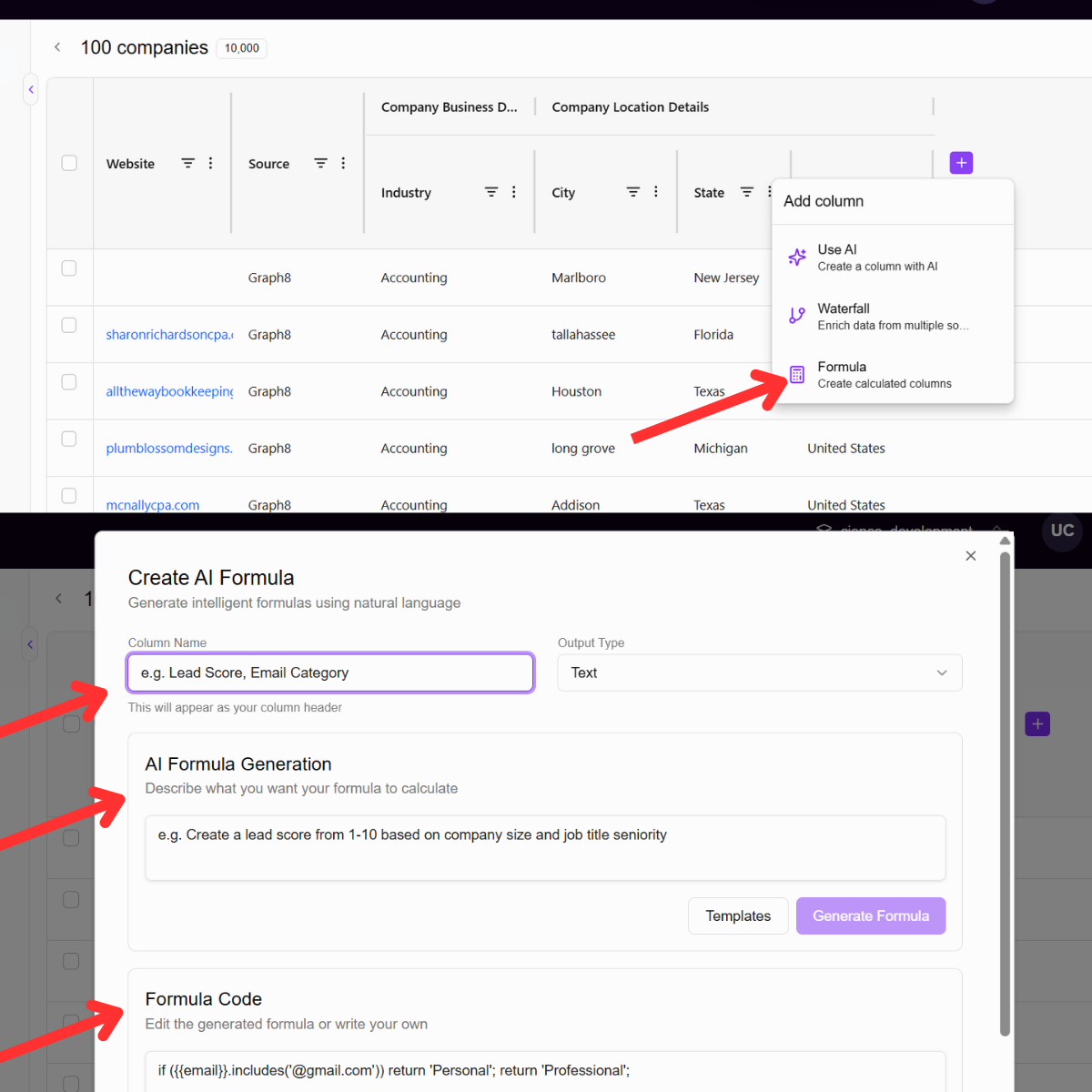
3) Formula
What it does: It lets you change and merge columns using formulas like in Excel. You can use functions like concatenate, substring, conditional logic, and regex. Use Formula to clean, standardise, or derive new columns before or after enrichment.
When to use: Tidy up names, merge first/last names, extract domains, normalize phone formats, or compute custom flags.
How to run (step by step):
Click Formula (Add Column → Formula).
Choose a template or write a custom formula.
Preview results on sample rows.
Save and run for the selected records.
Preview, mapping, conflict rules
Before running at scale:
Always Preview on a sample of records.
Map source results to graph8 fields (e.g., provider → work_email).
Set conflict rules:
Skip existing: only fill empty fields.
Overwrite: replace current values.
Append: add new info to notes or a separate column for manual review.
Best practices
Test small: Run previews on 10–50 records before large jobs.
Filter first: Only enrich records that are missing target fields to save credits and API calls.
Use confidence: Prioritise High / High+ for immediate outreach; manually verify Medium/Low.
Combine methods: Use Waterfall for structured fields, like emails, and AI for unstructured fields, such as summaries.
Schedule recurring jobs for dynamic lists with high churn.
Limits, quotas, and provider notes
Enrichment may consume account credits, provider API calls, or both. Check plan limits before large jobs.
Providers (Apollo, Hunter, etc.) require separate API connections and may have their own quotas. Configure these in Providers.
Large jobs may be processed in the background; monitor progress in Analytics.
Troubleshooting
No results: Check provider connections and API keys; broaden filters; confirm target fields available.
Low-quality outputs: Improve AI prompt or change provider order. Preview again.
Job failed or stalled: Retry with smaller batches; check job logs for errors and contact support with job ID.
Need help?
Use the in-app chat (bottom right) and include the job ID for fastest help.
Email support@graph8.com for account, provider connection, or quota questions.
For large or custom enrichment pipelines, contact Customer Success for professional services.
Please authenticate to join the conversation.
In Review
Feature Request
10 months ago

uzman ali
Subscribe to post
Get notified by email when there are changes.
In Review
Feature Request
10 months ago
uzman ali
Subscribe to post
Get notified by email when there are changes.