Contacts — Collect, Clean, and Activate Your Data
The Contacts page in graph8 lets you manage your contact database. You can run actions like lists and sequences, and create your personalisation for outreach.
This guide explains Filters, Columns, Actions, and how to safely add and run columns.
Quick overview
Filters: Narrow your contacts by location, title, company size, confidence, and more.
Columns: Choose which fields to show, reorder columns, and save your preferred layout.
Actions: Add contacts to lists or outreach sequences, export, or run bulk edits.
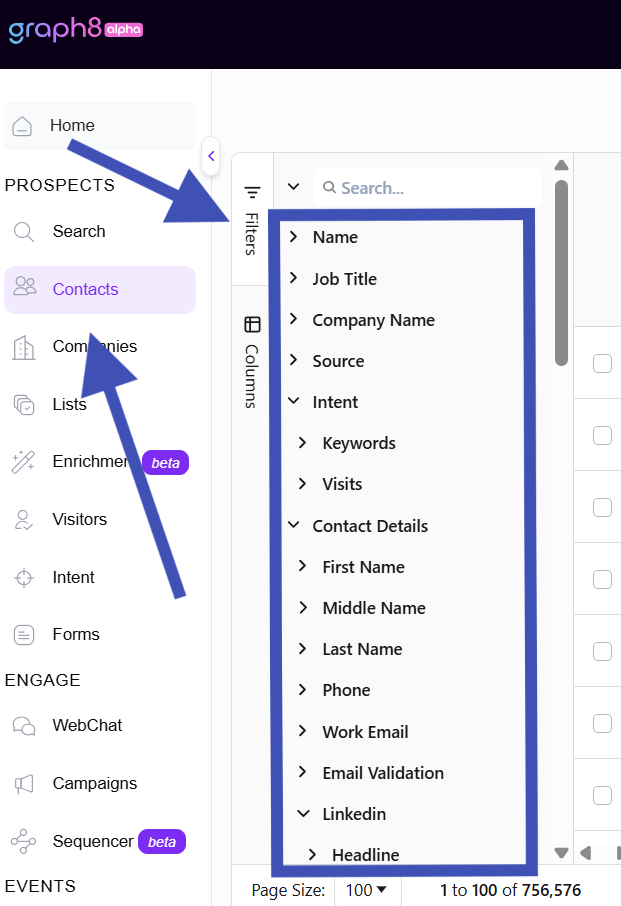
Filter your contacts (quick steps)
Open Contacts from the left-hand sidebar under Prospects.
Click Filters.
Select any criteria (e.g., location, job title, company size, contact confidence).
Click Apply or Run Search to update the table.
Use the search box inside Filters to find a specific filter quickly.
Note: Use filters together (like Industry, Seniority, and Intent Topic) to make clear prospect segments.
Customize your view (columns)
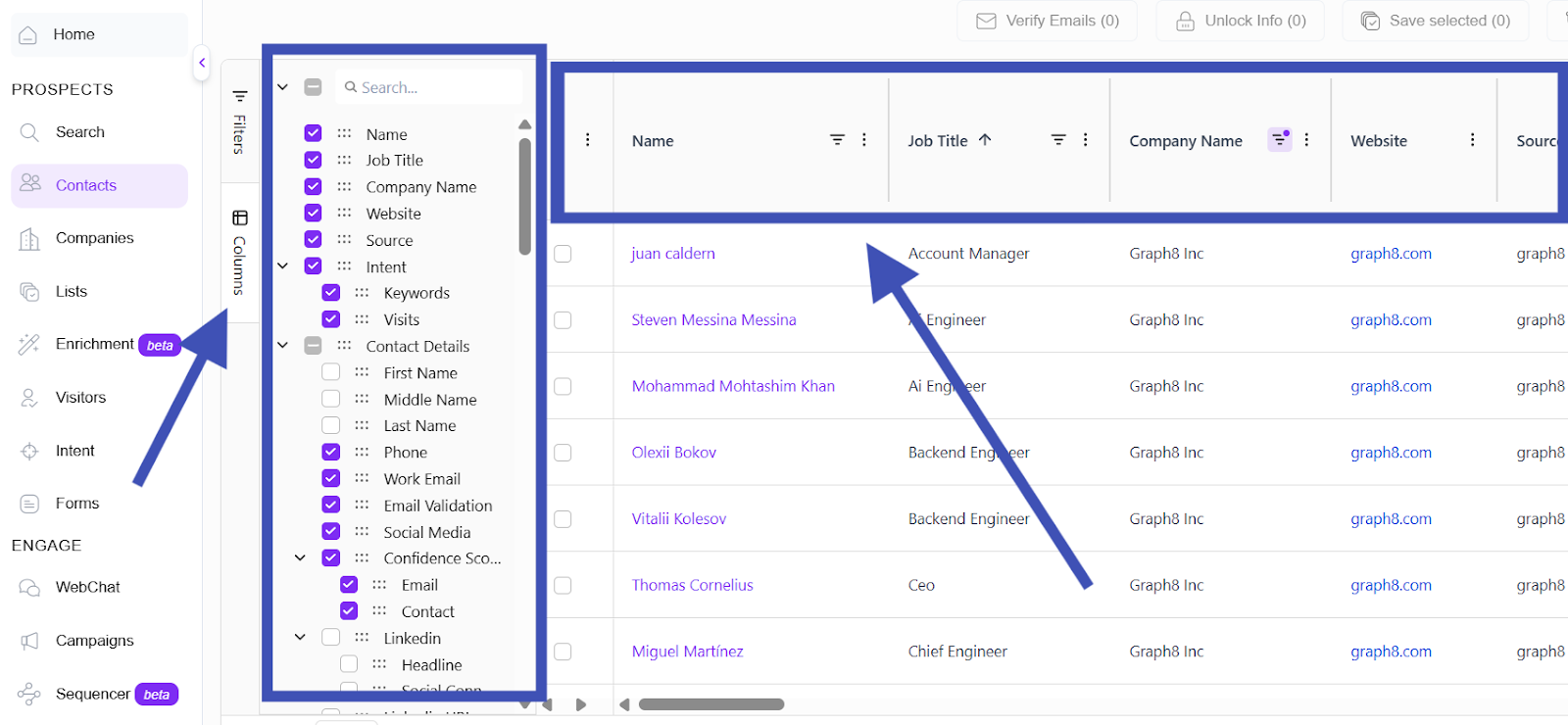
On the Contacts page, click on Columns.
Check or uncheck fields to show or hide them.
Drag column headers to reorder the table.
Click Apply to save the layout for your session.
Save your preferred layout as a view if your workspace supports saved views.
Tip: Only show the columns you need for outreach: Email, Job Title, Company, and Contact Confidence. This helps to cut down on clutter.
Sorting and Filtering Data in Columns
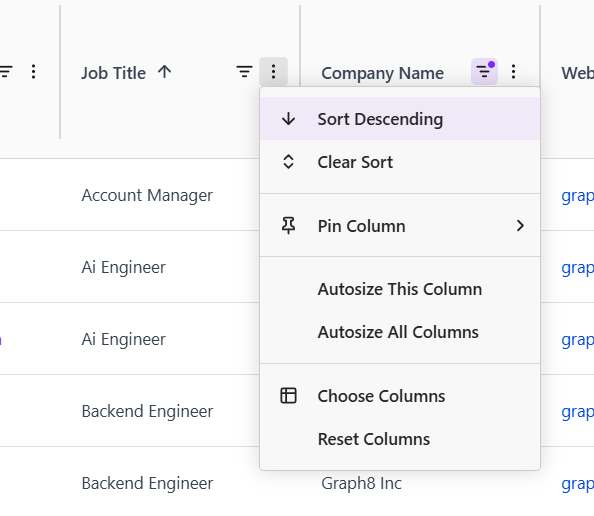
The Columns also lets you organize data in a way that’s easy to analyze and manage. You can quickly sort or filter columns to find the exact information you need.
Sorting Columns
Hover over any column header (e.g., Job Title, Company Name, or Website).
Click the three-dot menu beside the column name.
Choose Sort Ascending or Sort Descending to arrange data alphabetically or numerically.
To remove sorting, select Clear Sort.
You can pin important columns to keep them in view while scrolling. These sorting and filtering tools help you manage large datasets. You can find key decision-makers and organise your contacts easily, all without leaving the Contacts page.
Take action on contacts
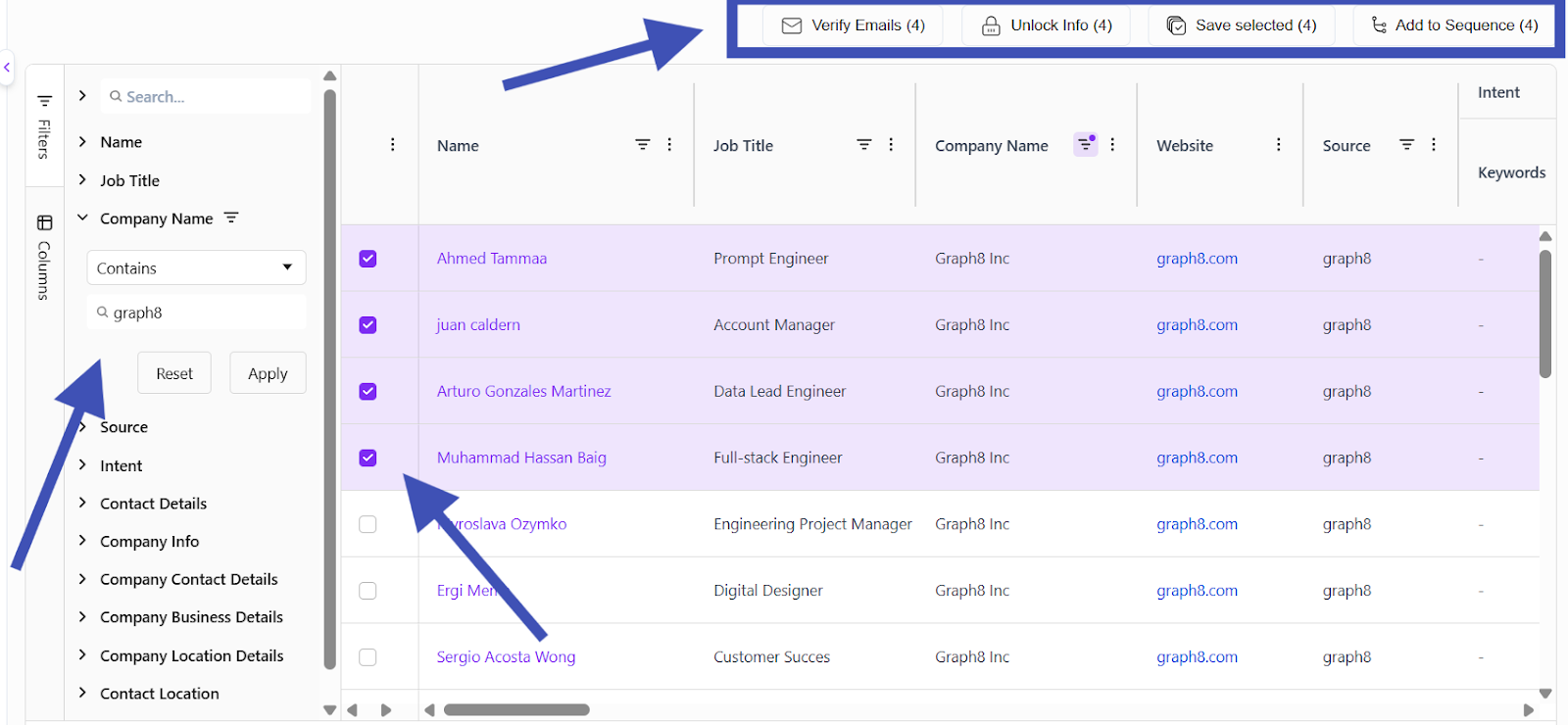
You can act on one or many contacts at once.
Select contacts using the checkboxes next to each row.
Use the action bar at the top to:
Verify Emails: This function verifies the emails of selected contacts.
Unlock info: graph8 gives users credits, which they can use to unlock information and more such features.
Add to List: Save selected contacts to a named list for future outreach or segmentation.
Add to Sequence: Enqueue chosen contacts into an existing outreach sequence (the sequence must be present).
Export: Export selected records if your plan allows.
Edit / Bulk Update: Apply edits to fields for many contacts.
Confirm the action in the modal that appears.
Note: Some bulk actions may be limited by account permissions or plan limits. If you can’t see an action, check role permissions or contact support.
Best practices & helpful tips
Test first: Always create one column and run it on 10–20 sample contacts before running at scale.
Use high-confidence contacts: Filter by Contact Confidence = High / High+ to maximise deliverability.
Keep prompts consistent: Save prompt templates for repeatable messaging across campaigns.
Protect relationships: Exclude lists like “Current Customers” or “Do Not Contact” before bulk actions.
Save views/filters: Save commonly used filters and column layouts for faster workflows.
Troubleshooting & limits
Action not available: Check your role and plan limits. Admins can give extra permissions.
Bulk jobs failing or slow: Try smaller batches; contact support if persistent.
Duplicates: Use list exclusion filters or run a de-duplication step before outreach.
Need help?
If you have questions or run into issues:
Visit the graph8 Knowledge Base for detailed guides and tutorials.
Use the in-app chat in the bottom-right corner of any graph8 page to talk with our support team.
Or email us directly at support@graph8.com.
Please authenticate to join the conversation.
In Review
Feature Request
10 months ago

uzman ali
Subscribe to post
Get notified by email when there are changes.
In Review
Feature Request
10 months ago
uzman ali
Subscribe to post
Get notified by email when there are changes.